
Authentication with Entra ID
Getting started
Entra ID – A Microsoft cloud product that enables users to enter any application or resource with their own company ID
Collabor8 Hello as the identity provider and authentication mechanism in the Collabor8 portfolio is being replaced by a standard Microsoft identity and access functionality called Entra ID, formerly Azure Active Directory.
Note: Depending on your internal corporate IT rules, you may need to enter your email and the confirmation information (password, code, etc.) before you proceed with set up the two-factor authorisation for CoOper8.
Two-factor authentication
Alternative steps
You can set up your two-factor authentication by using the Microsoft Authenticator app or select SMS as your preferred authentication method.
Alternative 1 – Microsoft Authenticator
- To use the Microsoft Authenticator app, you need to download it to your smartphone if you do not already have it.
Click “Next” to set up your account.
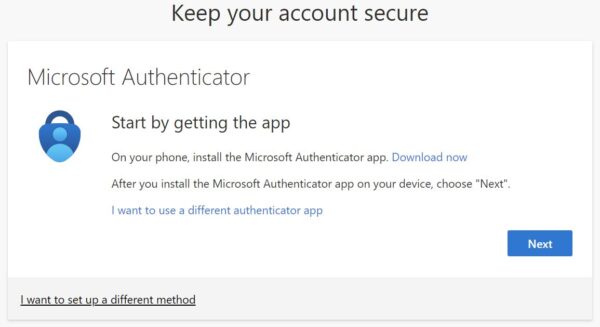
- Open the Authenticator app on your phone and select “ + ” to add the account.
Click “Next” in your computer screen.
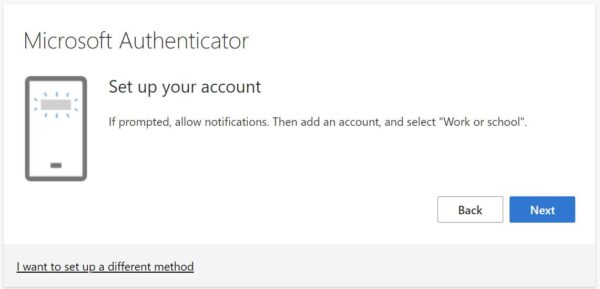
- Click “Scan QR code” in the app on your phone and scan the QR code that appears in your computer screen.
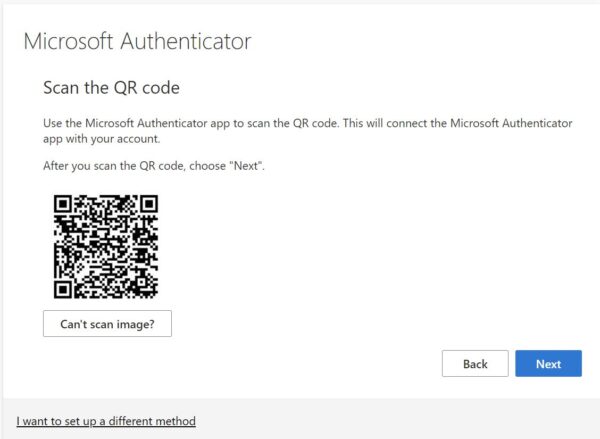
- Click “Next”. A notification is sent to your Authenticator app.
- Approve the notification. You may need to enter the number shown on your computer screen.
Alternative 2 – SMS
- Select “I want to set up a different method”.
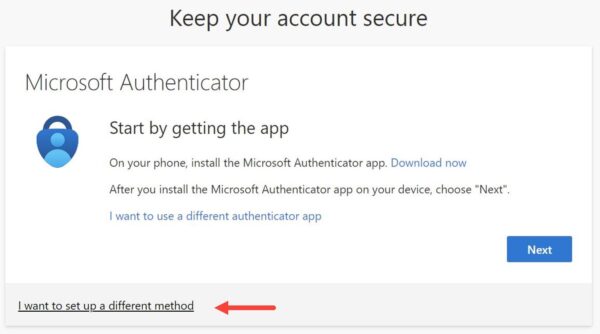
- Select “Phone”, then click “Confirm”.

- Select your country code, enter your phone number, then click “Next”.

- Enter the code that was sent to your phone, then click “Next”.
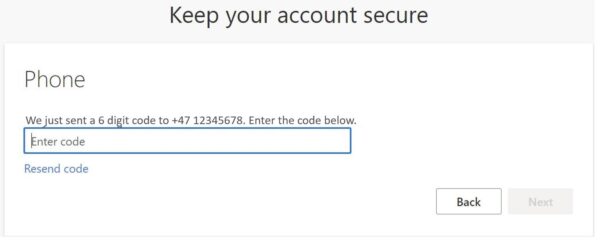
- Click “Next” to complete your registration.

Login
How to log in
- Navigate to the login page of the service that you want to log into.
- You will be redirected to the Microsoft login page.
- Enter your email address or select the correct account.
- Go through two-factor authentication using the method you registered with initially, Microsoft Authenticator or SMS method.